Google Calendar Timezone Tips Every Remote Worker Should Know
Master Google Calendar's timezone features. Learn practical tips for managing multiple timezones, using World Clock, setting working hours, and integrating fairness into your daily calendar workflow.
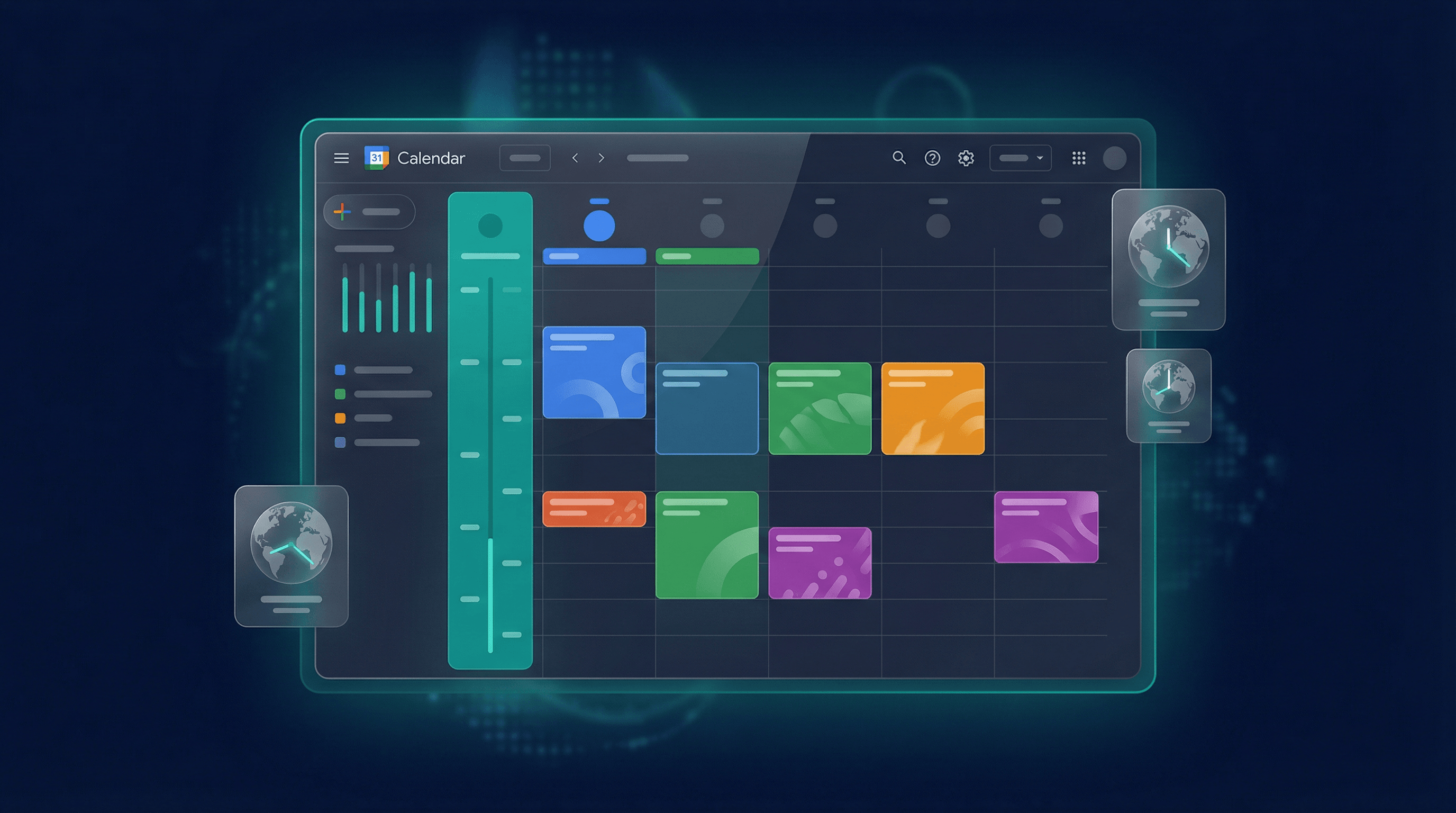
Enable Secondary Timezone Display
Most remote workers don't realize Google Calendar can display two timezones simultaneously. Go to Settings → General → Timezone, and you'll see an option to "Display secondary timezone." This is a game-changer. If you're in San Francisco but regularly schedule calls with London, enable GMT as your secondary timezone. Every event on your calendar will show both times.
Why does this matter? Context switching is expensive. When you're looking at your calendar and you see a meeting at "4pm," you might instinctively think that's fine, until you realize your London colleague is joining from 12am. Seeing both times simultaneously forces you to visually process the impact. Over weeks, this builds awareness of the fairness cost of your scheduling decisions. You start naturally avoiding late-night or early-morning meetings for remote participants.
Tip: If you're in a hub-and-spoke timezone setup (one large office plus distributed remote), set your secondary timezone to the office timezone. If you're fully distributed, set it to the timezone of your biggest distributed office or the timezone that's most inconvenient for you (forcing you to stay aware of it).
Use the World Clock Side Panel
In the left sidebar of Google Calendar, there's a "World Clock" widget if you enable it (Settings → Add Calendars → "World Clock"). This shows you the current time across multiple zones simultaneously. When you're about to schedule a meeting and you're torn between two time slots, open World Clock and actually look at what time it is for your team in each timezone. This 10-second check prevents most bad scheduling decisions.
Even better: customize the World Clock to show the exact cities your team members are in. Instead of generic "EST" and "GMT," pin "New York," "London," "Tokyo," and "Sydney." Seeing actual city names makes the human impact more visceral. You're not distributing time zones; you're distributing costs to people in places.
Set Working Hours Correctly—All of Them
Google Calendar allows you to set "working hours" (Settings → Working Hours). This is a critical signal for your team. When you set working hours to "9am-6pm PST," you're telling your team "this is when I'm available for synchronous work." If someone schedules a meeting with you at 3am your time, they're actively breaking your stated boundary.
If you're distributed across zones, you might have irregular working hours. Maybe you work 9am-6pm most days, but you're okay with a 7pm or 8am call twice a week when there's timezone necessity. Set your working hours to the most restrictive boundary (9am-6pm), but communicate in your Slack bio or calendar description: "Flexible on occasional 8am or 7pm for timezone coordination." This manages expectations while protecting your main focus time.
Critical tip: if you're in a startup with an 8-10am standup and you're in an inconvenient timezone, don't silently join at 5am every day. Set your working hours to reflect what's actually happening. Set them as "5am-2pm" if that's your real schedule, or set them as "9am-6pm" and explicitly tell your manager "I'm joining standups at 5am, please rotate who has the graveyard shift." Working hours visibility forces this conversation and prevents the silent suffering that eventually leads to burnout.
Use "Find a Time" for Group Scheduling
When you're scheduling a meeting with 3+ people, Google Calendar's "Find a Time" feature shows a grid of everyone's calendar availability across all timezones. This is incredibly useful. But most people don't understand what they're looking at. The grid shows green blocks (free), red blocks (busy), and gray blocks (working hours not set). You can visually identify overlapping free time.
However, "Find a Time" doesn't show timezone pain. It only shows availability. A time slot might be free for everyone but terrible for half the team (6am for someone, 10pm for someone else). This is why ClockAlign's integration matters—it overlays sacrifice scores onto the "Find a Time" interface, showing you not just availability, but fairness. When you're using vanilla Google Calendar, be aware that just because a slot is "free" doesn't mean it's fair.
Calendar Integration with Fair Scheduling Tools
Google Calendar is a solid foundation, but it has structural limitations for distributed teams. It shows you times and availability, but not fairness or sacrifice costs. This is where tools like ClockAlign integrate. ClockAlign connects to your Google Calendar (with your permission) and adds a fairness layer on top. When you're deciding between two time slots in "Find a Time," ClockAlign shows you the sacrifice score for each option, helping you choose the time that's not just available but actually fair.
The integration also handles async alternatives. If ClockAlign detects that a meeting would impose high sacrifice (over 15 points or touching multiple graveyard zones), it suggests: "This meeting might be better as a recorded update and async Q&A." This helps teams shift toward more sustainable meeting practices without requiring manual evaluation every time you schedule.
Calendar Best Practices for Distributed Teams
Color code by timezone: Assign calendar colors to meetings based on timezone region. All meetings in "US timezones" are blue, "Europe" is green, "Asia" is purple. This trains your eye to recognize patterns. You might notice "Oh, I'm taking a lot of purple meetings late at night" and course-correct.
Block focus time in your calendar: If you're in a timezone with tight overlap windows, block 2-3 "focus blocks" per week in your personal calendar as "busy." This prevents people from booking you during those times, protecting deep work. If your overlap is 10am-12pm, don't let that window get cluttered with calendar clutter.
Use calendar descriptions for working hour variations: "Normally 9am-6pm PST. Available 7am and 8pm for timezone coordination, but please rotate these with other team members." Explicit expectations prevent resentment.
Sources and further reading
Related Articles
Ready to schedule meetings fairly?
Try ClockAlign free — see sacrifice scores, find golden windows, and build a more equitable meeting culture.
Get Started Free